You can subscribe to notifications by Arazzo workflow, to receive a message when an API included in the Arazzo workflow does not pass the criteria checks. You can configure SLA (Service Level Agreement) monitoring to track service availability and get notified when uptime falls below your target threshold. You can also archive old workflows, so they do not clutter the Respect Monitoring page, allowing you to focus on active workflows.
Make sure you have the following before you begin:
- Realm owner organization role
- an Arazzo description file in project
- a
jobconfiguration in yourredocly.yamlfile - if you are configuring Slack notifications:
- Slack Workspace owner permissions
- the name of the public channel you plan to use
Get Respect Monitoring incident updates and maintenance status updates sent directly to you. You can select what severity level events you want reported in the notifications. You can subscribe to Slack or email notifications.
Slack notifications are sent to the specified channel for a specific workflow.
To set up Slack notifications:
- Select Respect Monitoring in the sidebar in Reunite.
- Select the workflow you want to subscribe to.
- Click Notifications in the top right side corner.
- Click Subscribe via Slack.
- Select the Slack workspace you want to install the Redocly app on and click Allow to install the Redocly Slack app to your Slack workspace.
- Select a public Slack channel as the Default channel where the notifications are delivered.
- (Optional) Add the default events you would like to receive notifications for. You must have at least one event listed to subscribe to notifications.
- (Optional) Deselect the Alert when back up checkbox if you do not want to receive a notification when a down workflow is back up again.
- (Optional) Use the slider or enter a lower number of errors for when the notification should be resent.
- Click Save.
After you have subscribed, notifications are sent based on the interval time frame configured in your redocly.yaml file.
Email notifications are sent to the specified email address for a specific workflow.
To set up email notifications:
- Select Respect Monitoring in the sidebar in Reunite.
- Select the workflow you want to subscribe to.
- Click Notifications in the top right side corner.
- Select the Email tab in the modal.
- Add the default events you would like to receive notifications for. You must have at least one event listed to subscribe to notifications.
- Click Save.
After you have subscribed, notifications are sent based on the interval time frame configured in your redocly.yaml file.
Service Level Agreement (SLA) monitoring tracks your API's uptime and sends notifications when the service availability drops below your target threshold over a specified period.
SLA monitoring helps you:
- track service availability over time
- get notified when uptime falls below your target threshold
- monitor recovery after SLA breaches
Make sure you have:
- Realm owner organization role
- an active workflow in Respect Monitoring
- if you are configuring Slack notifications:
- Slack Workspace owner permissions
- the name of the public channel you plan to use
To configure SLA monitoring for a workflow:
- On Reunite's Respect Monitoring tab, select the workflow you want to configure SLA monitoring for.
- Click Notifications in the top right side corner.
- Select the SLA tab in the modal.
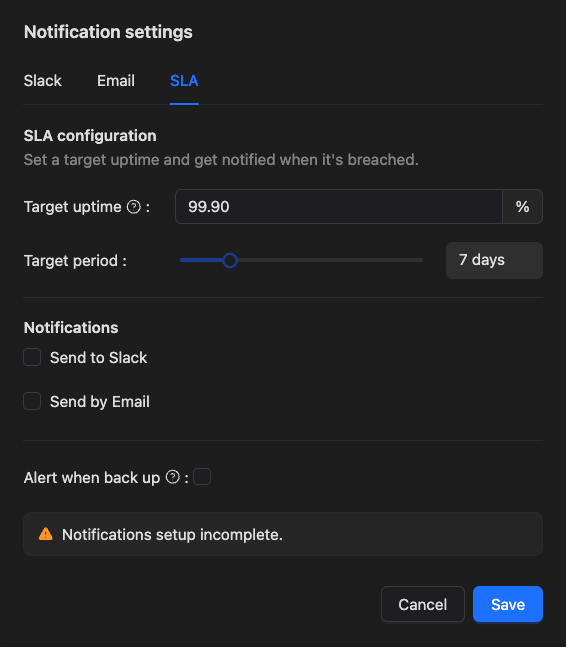
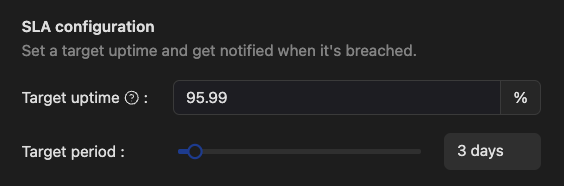
- Configure SLA target:
- Target uptime: the minimum service availability percentage you expect to maintain (0-100%). Default is 99.9%. For example, 99.9% uptime allows approximately 43 minutes of downtime per month.
- Target period: the number of days (1-30) over which the SLA is calculated. Default is 7 days.
- Configure notification channels:
- Send to Slack: Enable to receive SLA breach and recovery notifications in Slack. If Slack is not yet connected, click Connect Slack workspace to install the Redocly app. Select the Slack channel where notifications should be sent.
- Send by Email: Enable to receive SLA notifications via email. Add up to 5 email recipients who should receive notifications. Click Add recipient and enter an email address for each recipient.
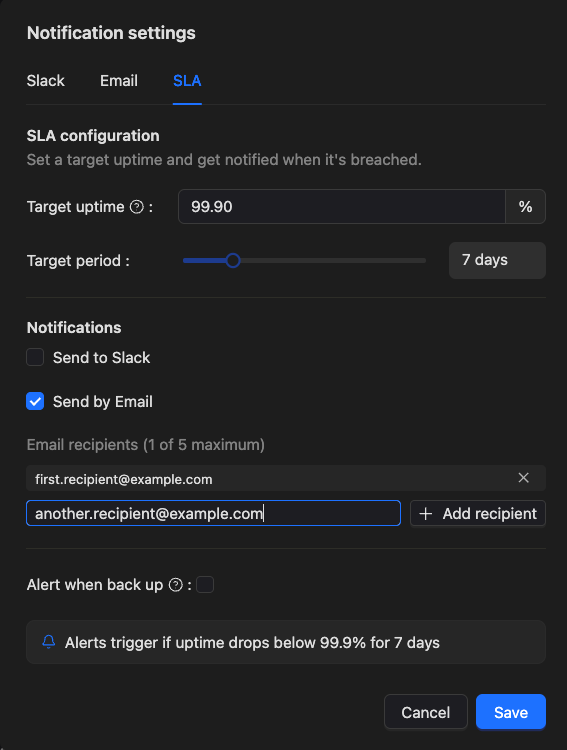
- (Optional) Enable Alert when back up to receive notifications when your service recovers and meets SLA targets again after a breach.
- Review the alert summary that shows when alerts will trigger based on your configuration.
- Click Save.
After you configure SLA monitoring, Reunite tracks your workflow's uptime and sends notifications when:
- uptime drops below the target percentage over the specified period (SLA breach)
- service recovers and meets SLA targets again (if Alert when back up is enabled)
The following example shows a typical SLA configuration:
- Target uptime: 99.9% (allows ~43 minutes downtime per month)
- Target period: 7 days
- Notifications: Enabled for Slack channel
#api-alertsand emailteam@example.com - Alert when back up: Enabled
With this configuration, Reunite sends notifications when:
- the API's uptime falls below 99.9% over any seven day period
- when the API recovers
You can archive workflows you no longer wish to continue running.
To archive a workflow:
- On a new branch, remove the Arazzo Description from your project.
- Delete the
jobfrom yourredocly.yamlfile. - Commit your changes and merge your pull request with your changes.
- After deployment, you can still see the old workflow data by clicking the Archived toggle.
- Configure Respect Monitoring - Set up comprehensive API performance monitoring and reliability tracking with automated workflow execution
- Reunite configuration reference - Complete Respect Monitoring job configuration options for customizing monitoring behavior and thresholds